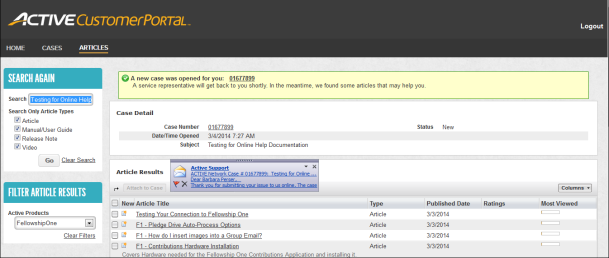
Manage Your Support Cases.
The Active Customer Portal is a useful tool and is the key to finding information about your support cases. With this portal, you are able to
Note: Fellowship One Champions have access to all cases submitted, past and present, by their team members.
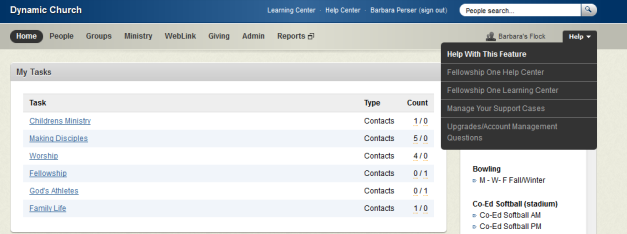
To access the ACTIVE Customer Portal,click Help in the upper right hand corner of the portal page, then choose Manage Your Support Cases.
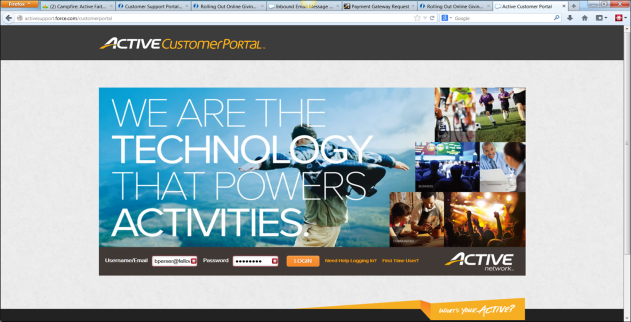
Note: If this is your first time to use the ACTIVE Customer Portal, select First Time User?. Enter your email address in the Username box and click Submit. The system will generate a temporary password for you which will be sent via email.
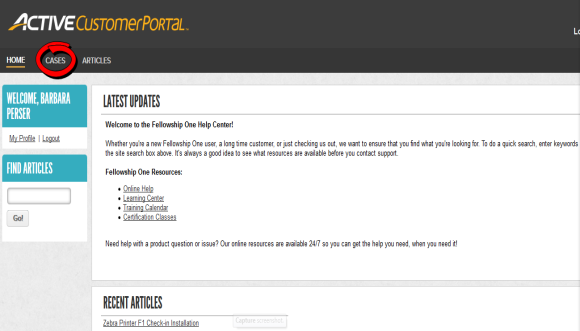
Once you have access to the ACTIVE Customer Portal, select the CASES link to view all open and closed cases, add notes, attachments, or to respond directly to the support agent working on your case.
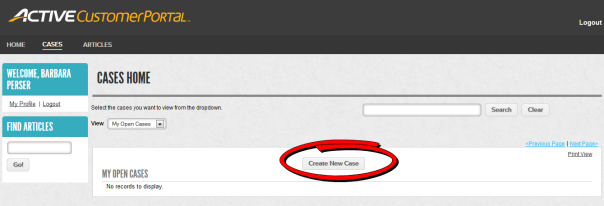
To create a new case
Create New Case
Note: If you have phone support, a Support Agent will create the case for you during your call. You'll get an email confirmation with your case number.
Tip! If you need to attach a file to your case, simply click on your new case number and scroll down to the bottom of the page. You'll see a section for attaching a file. Browse to your file, click Attach and then Done or simply respond to the email you received from us with the file attached.